Search for a Program Setting
The Program Settings screen provides several different methods for searching for the desired Program Setting. These methods can also be combined, such as searching for a text string within a selected Category.
Text Search
The platform allows you to search for a Program Setting by entering a text string. The platform searches for this text string anywhere within the Program Setting name or description, or within a Program Setting Category name.
To execute a text search for a Program Setting:
-
Select Program from the top navigation bar, then select Settings > Program Settings from the side navigation menu. The Program Settings screen is displayed.
-
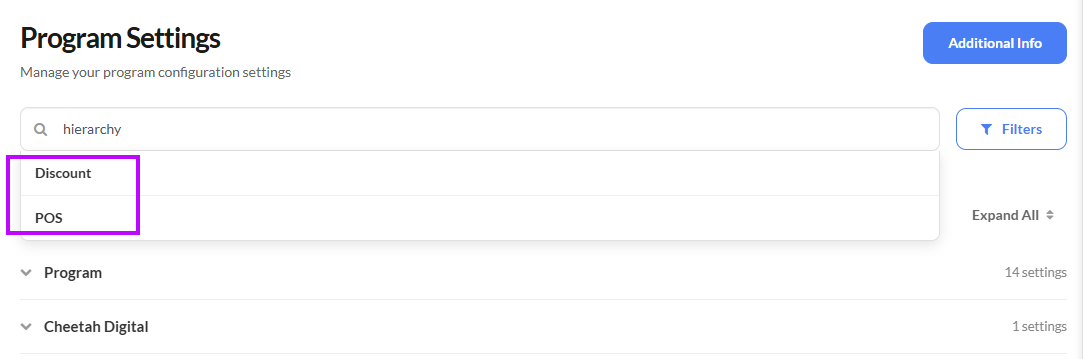
In the Search field, begin entering the desired text string. As you type, the platform dynamically updates the list of Categories that have at least one Program Setting that contains this text string.
-
Utilize either of the following search options:
-
At any point while typing in your search text string, select a Category from the search results list. The platform displays all the Program Settings in that selected Category.
-
-
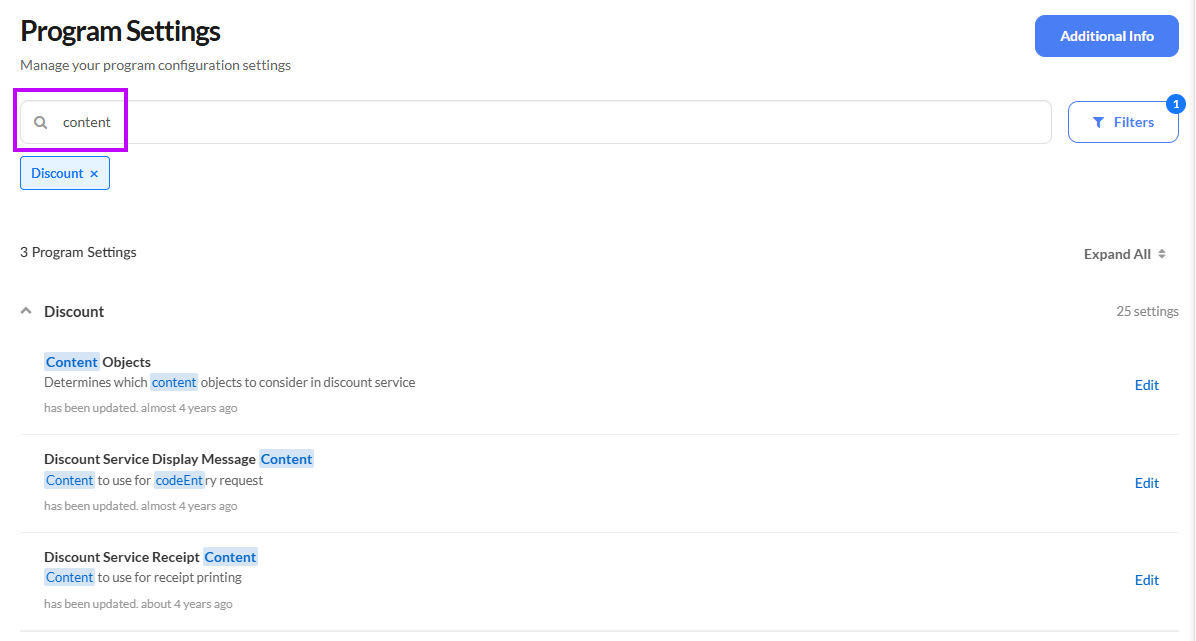
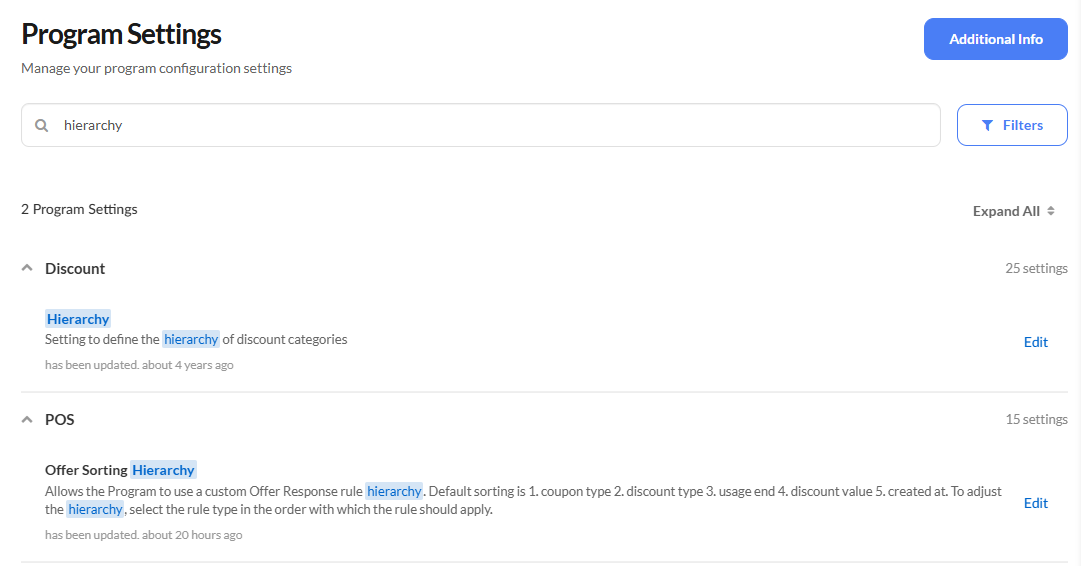
Finish typing your search text string and press Enter. The platform displays a list of only the Program Settings that contain this text string within the name or description. The Program Settings are organized into their respective Categories. The platform also highlights the search text string within the results.
Category Filter
To filter the Program Settings screen based on Program Setting Category:
-
Select Program from the top navigation bar, then select Settings > Program Settings from the side navigation menu. The Program Settings screen is displayed.
-
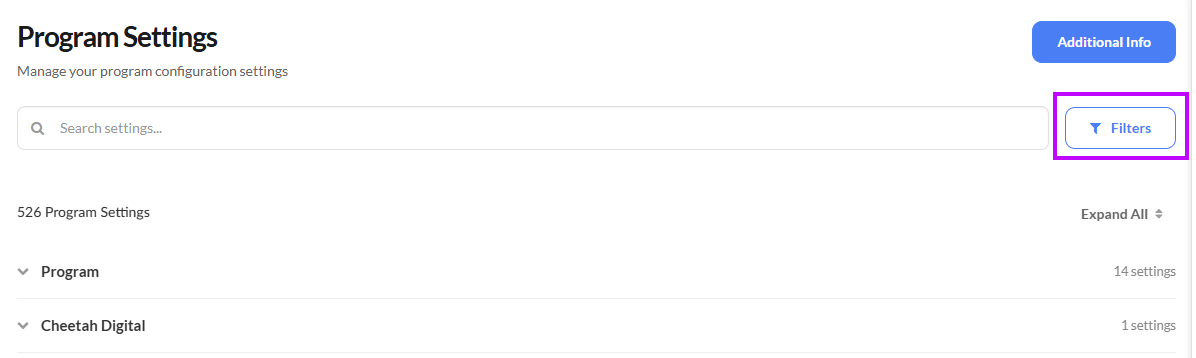
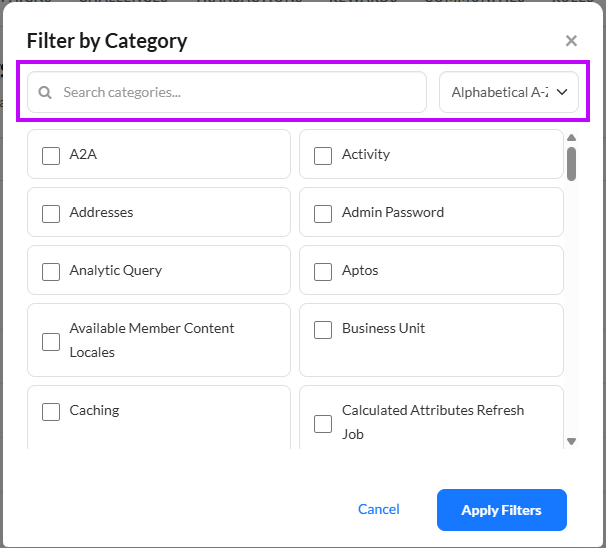
Click Filters. The Filter by Category pop-up window is displayed.
-
Optionally, enter a search text string in the Search field within the Filter by Category pop-up window. As you type, the platform dynamically updates the list of Categories that have this text string within the Category name.
-
Optionally, select a sort option from the Sort drop-down menu. The available sort options are: alphabetically in ascending order (default), alphabetically in descending order, or recently modified.
-
Check one or more Categories.
-
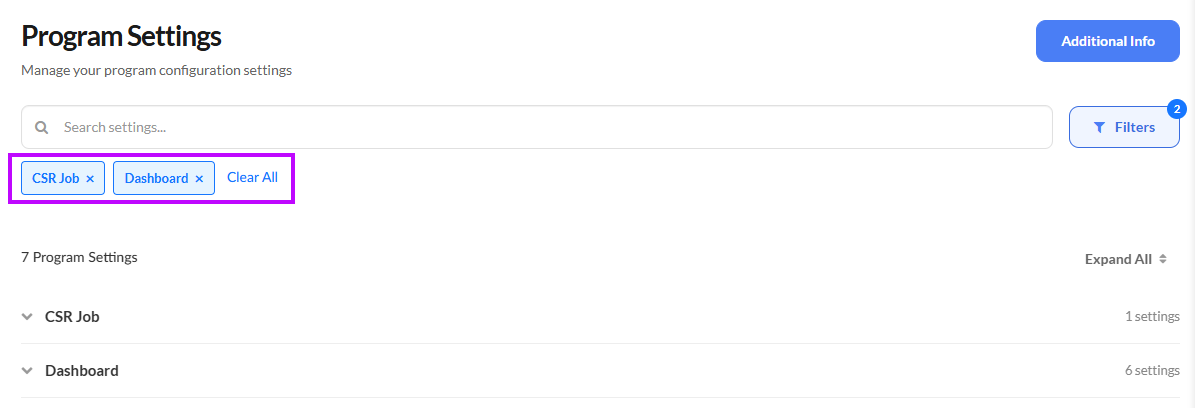
Click Apply Filters. The platform displays the selected Categories as expandable panels. All Categories are collapsed by default. Click the name of a Category to expand it and see the Program Settings within that Category. You can also click Expand All to expand all the displayed Categories.
-
The names of the selected Category Filters are displayed beneath the Search text field. Optionally, click the X icon next to a Category Filter to remove it. Or, click Clear All to remove all Category Filters.
-
After applying a Category Filter as described above, you can optionally execute a text search, only within the selected Categories. Enter the desired text string in the Search field, then press Enter. The platform displays only the Program Settings that have this text string within the Setting name or description AND that are within the filtered Category (or Categories). The platform also highlights the search text string within the results.